

Organization members
Manage organization members at/platform/members. The table shows each member’s email, role, and join date.
Invite a member
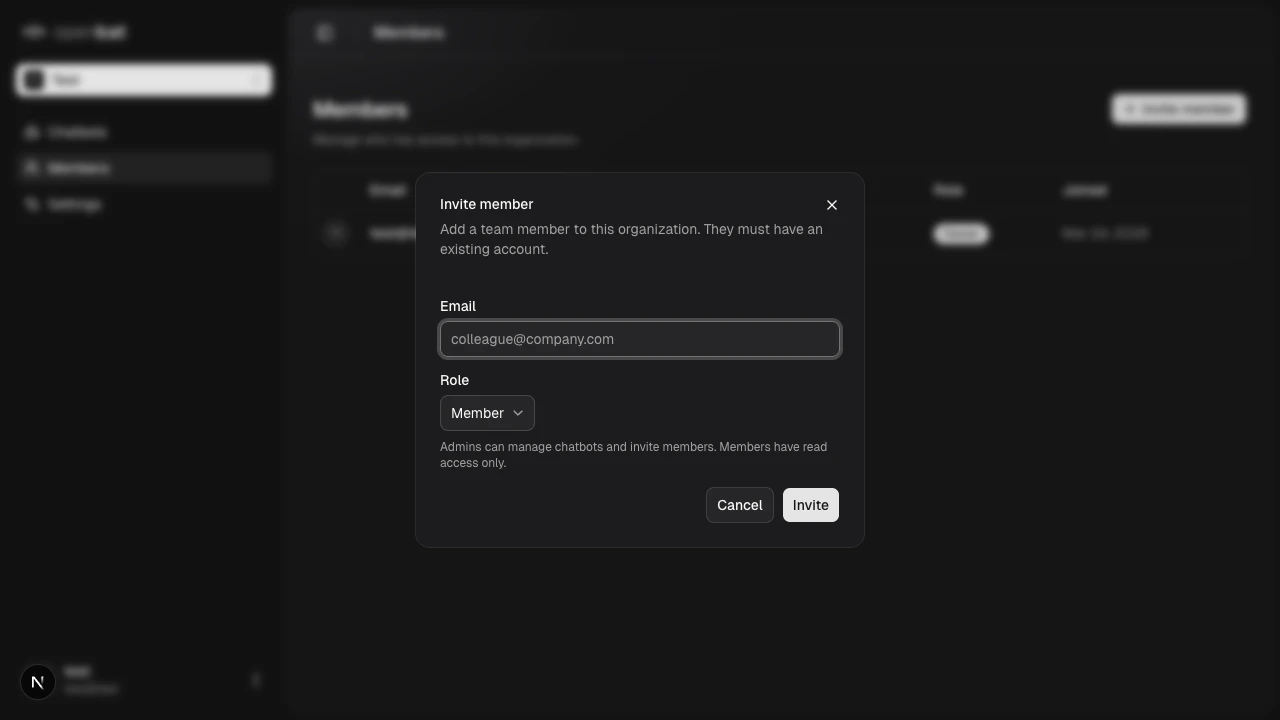
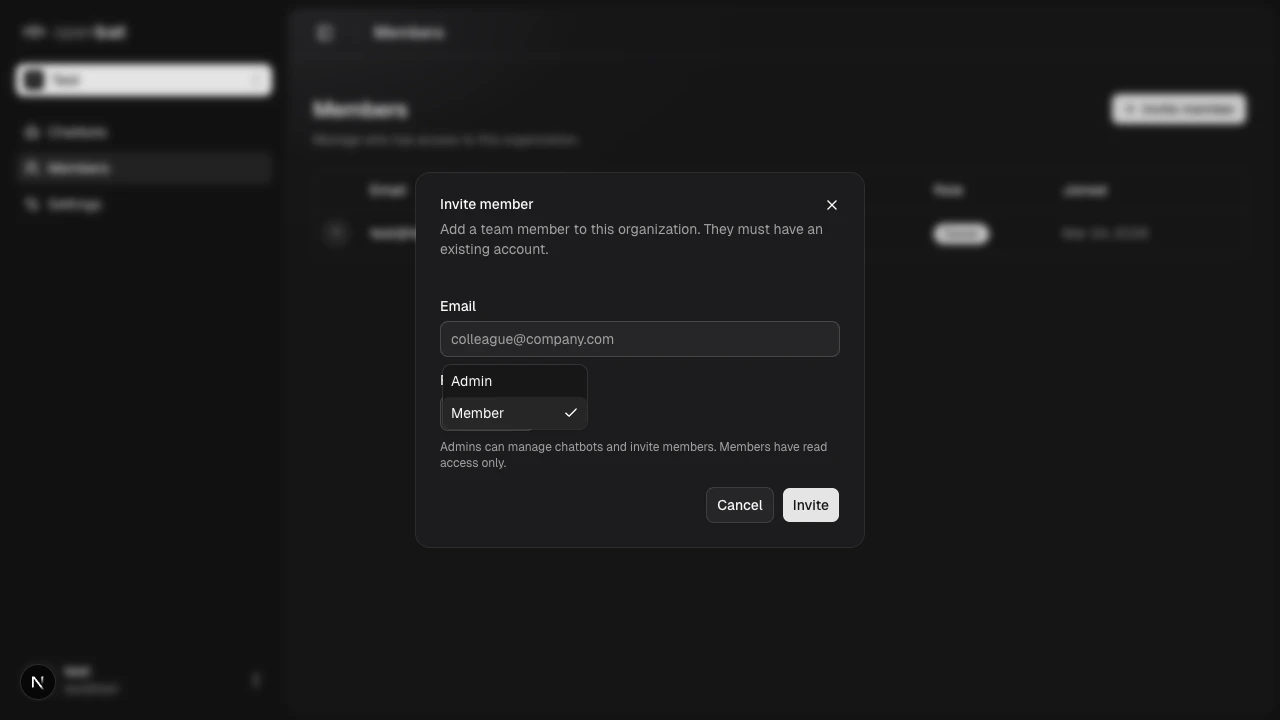
Roles
Owner
Owner
Full access to all chatbots and settings. Can rename and delete the organization, manage members, and perform all admin actions. Assigned to the organization creator.
Admin
Admin
Can manage chatbots and invite new members. Has access to all chatbot dashboards, settings, and configurations within the organization.
Member
Member
Read-only access. Can view dashboards, conversations, and analytics but cannot modify settings or invite members.
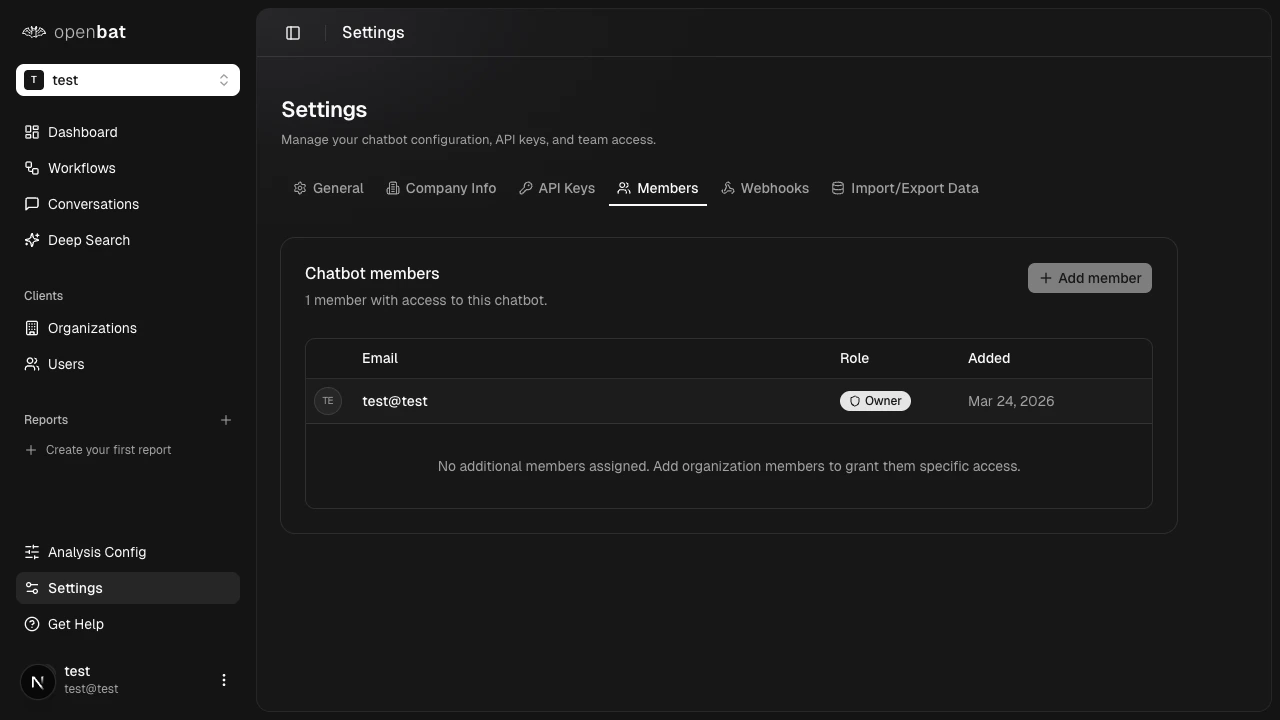
Chatbot members
Individual chatbots can have their own member list, managed from/platform/{chatbotId}/settings > Members tab.
Change roles or remove members
To change an organization member’s role, remove them and re-invite with the new role. To remove a member from the organization, click the remove action next to their name in the members table at/platform/members.
The organization Owner role cannot be changed or removed. It is permanently assigned to the organization creator.
Next steps
Organizations
Create and manage your organizations.
Chatbot settings
Configure individual chatbot options.