

/platform/{chatbotId}/conversations provides a browsable, filterable table of every conversation your chatbot has had. Click into any conversation to see the full message thread with AI analysis annotations.
Conversation list
The table displays the following columns:| Column | Description |
|---|---|
| User | Name of the end user |
| User’s email address | |
| Organization | User’s organization |
| Messages | Message count in the conversation |
| Sentiment | Average sentiment with color-coded badge |
| Plan | User’s subscription plan |
| Last message | Timestamp of the most recent message |
| Created | When the conversation started |
Search and filter
Use the search box to filter conversations by keyword. For advanced filtering, click the Filter button to open the filter popover: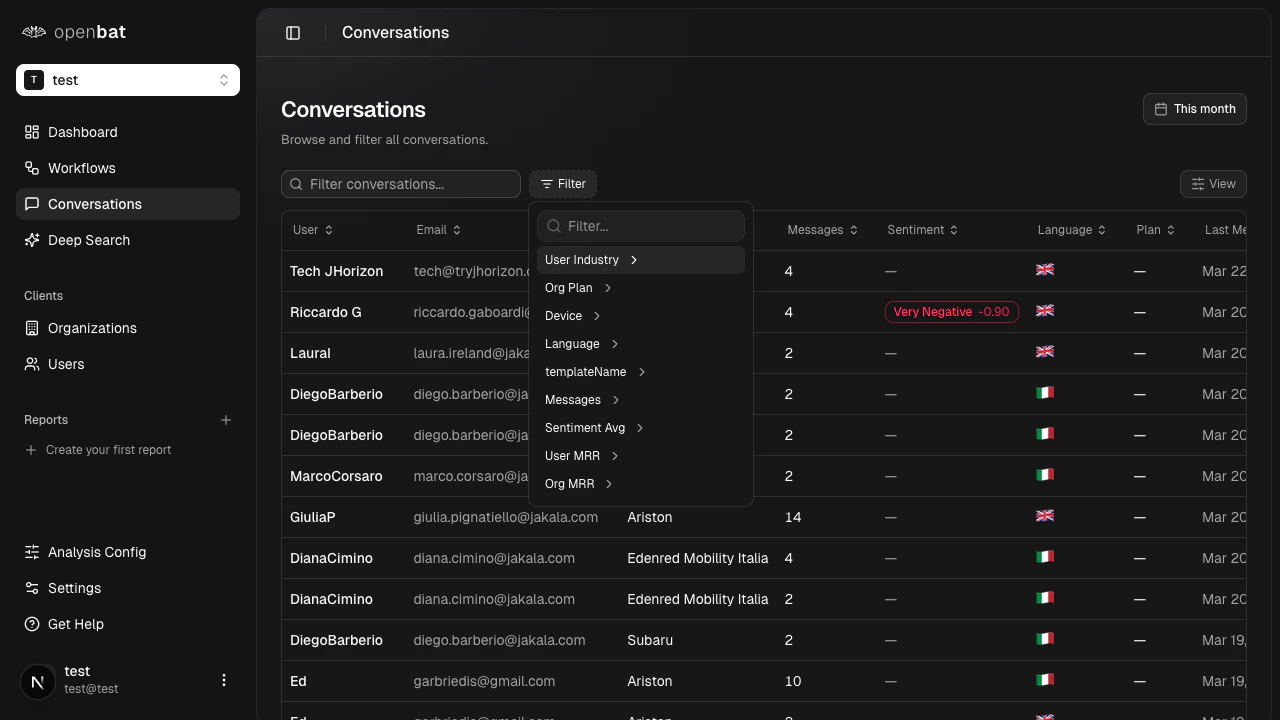
- User Industry
- Org Plan
- Device
- Language
- Template name
- Messages (count range)
- Sentiment average (score range)
- User MRR
- Org MRR
Column visibility
Click the View button to show or hide columns. There are 11 toggleable columns.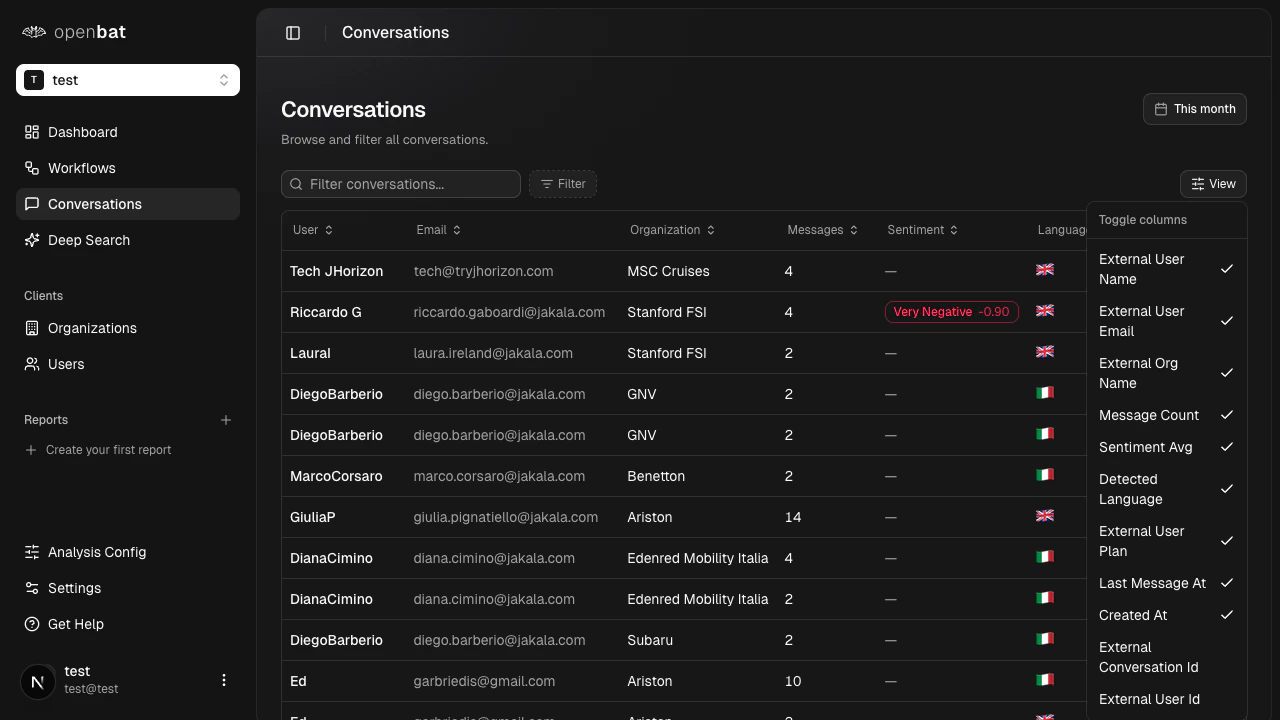
Date range and pagination
Use the date range button to filter conversations by time period (defaults to This month). Pagination controls at the bottom let you set rows per page (10, 20, 50, or 100) and navigate between pages.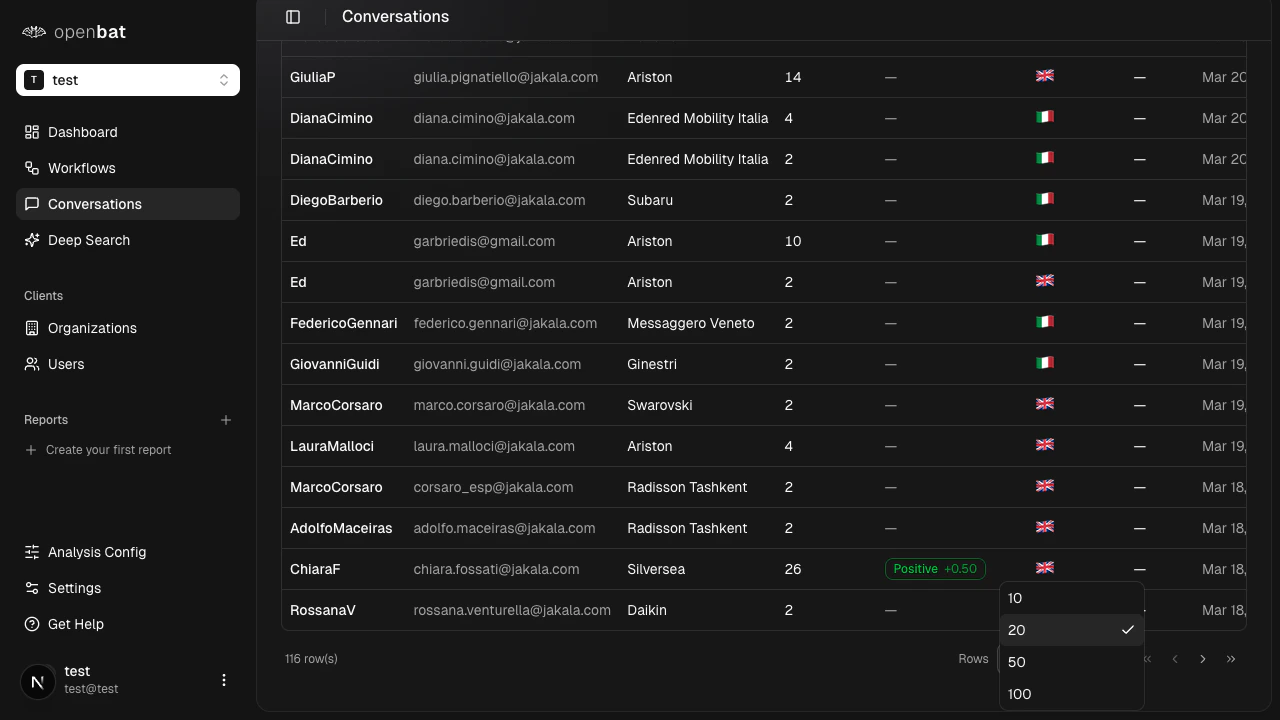
Conversation detail
Click on any conversation row to open the full thread at/platform/{chatbotId}/conversations/{conversationId}.
Message thread
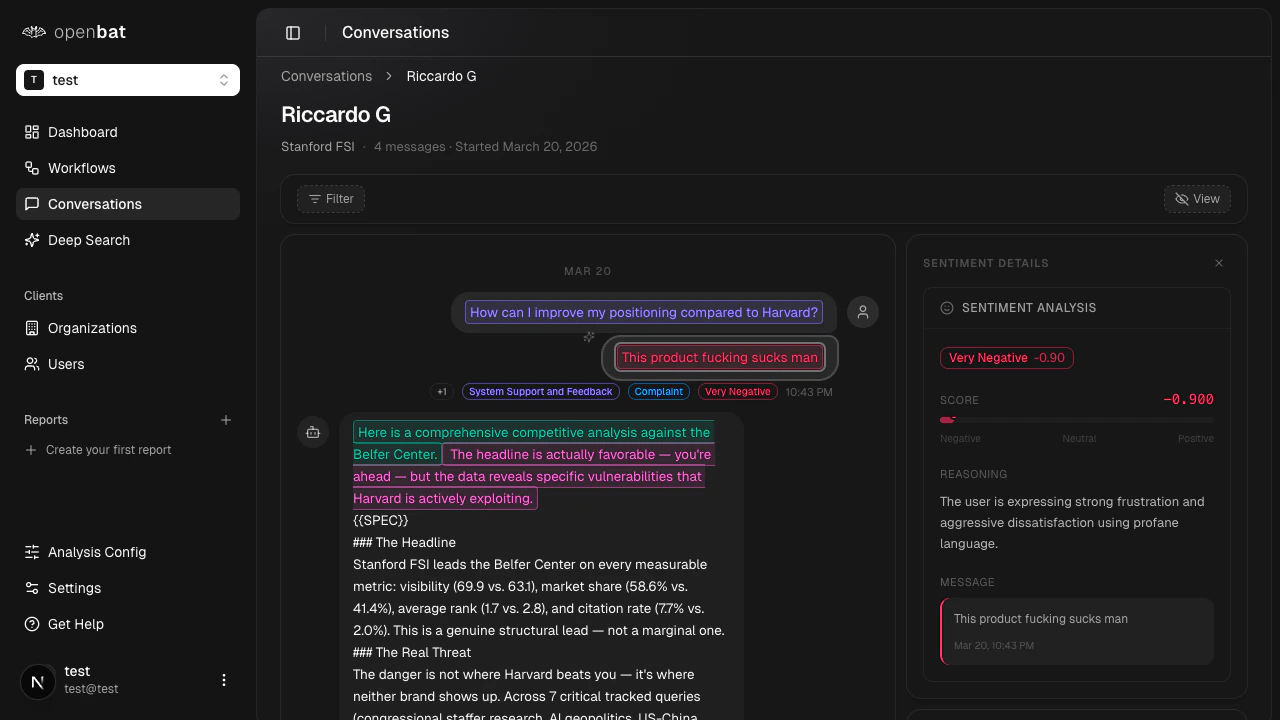
Each message shows the sender (user or assistant) and the message text. AI analysis annotations are displayed as clickable highlights and tags:- Sentiment tags — color-coded sentiment scores (e.g., “Very Negative”, “Positive”)
- Behavior flags — detected user behaviors (e.g., “Frustrated User”, “Buying Signal”)
- Quality flags — assistant quality issues (e.g., “premature closure”, “hallucination”)
- Resolution status — how the conversation was resolved (e.g., “Fully Resolved”)
Sidebar metadata
The right sidebar shows contextual information about the conversation:Overall sentiment
Overall sentiment
Aggregate sentiment score and distribution across all messages in the conversation.
Conversation metadata
Conversation metadata
Message count, conversation ID, start and end timestamps.
User info
User info
Name, email, user ID, subscription plan, industry, and MRR (monthly recurring revenue).
Organization info
Organization info
Organization name, org ID, plan, industry, and MRR.
Session info
Session info
Session ID, page URL, referrer, device type, and country.
Next steps
Deep search
Find conversations by meaning instead of keywords.
Analysis config
Customize which annotations OpenBat generates.
Client management
Track organizations and users across conversations.