

/platform/{chatbotId}/settings > Import/Export Data.
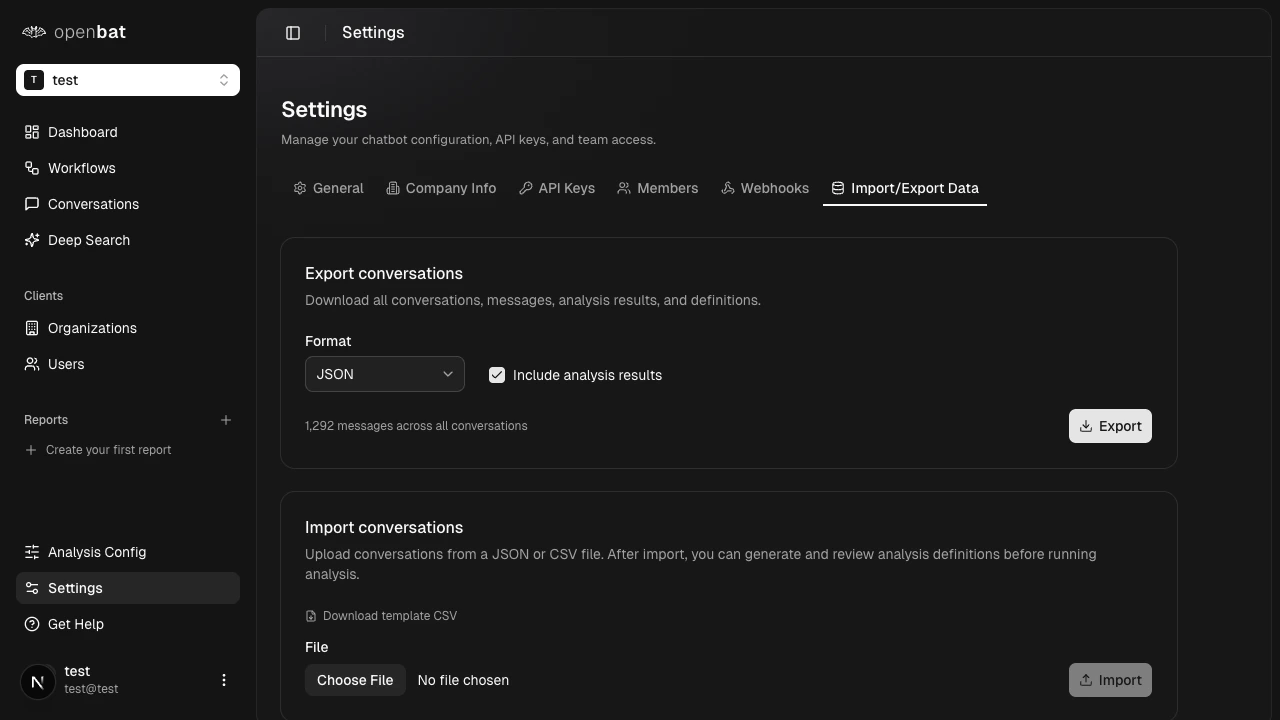
Export conversations
Include analysis results (optional)
Check Include analysis results to export sentiment scores, behavior flags, quality flags, and other annotations alongside the raw conversation data.
Large exports may take time for chatbots with many conversations. The file includes all conversations within the current date range.
Import conversations
Import historical conversation data to analyze it with OpenBat. This is useful when migrating from another tool or when you have existing conversation logs.Download the template (optional)
Click Download template CSV to get a file showing the expected data format and column structure.
Use cases
| Scenario | What to do |
|---|---|
| Offline analysis | Export with analysis results, process in Python/R/Excel |
| Regular reporting | Export monthly, track trends outside OpenBat |
| Backup | Export periodically for data redundancy |
| Migration | Import conversations from a previous analytics tool |
| Historical analysis | Import old conversation logs to analyze retroactively |
Next steps
Conversations
Browse your imported conversations.
Chatbot settings
Manage other chatbot configuration options.