

/platform/{chatbotId} is your central hub for understanding how your chatbot is performing. It combines real-time KPIs, sentiment trends, user behavior signals, and assistant quality metrics in one view.
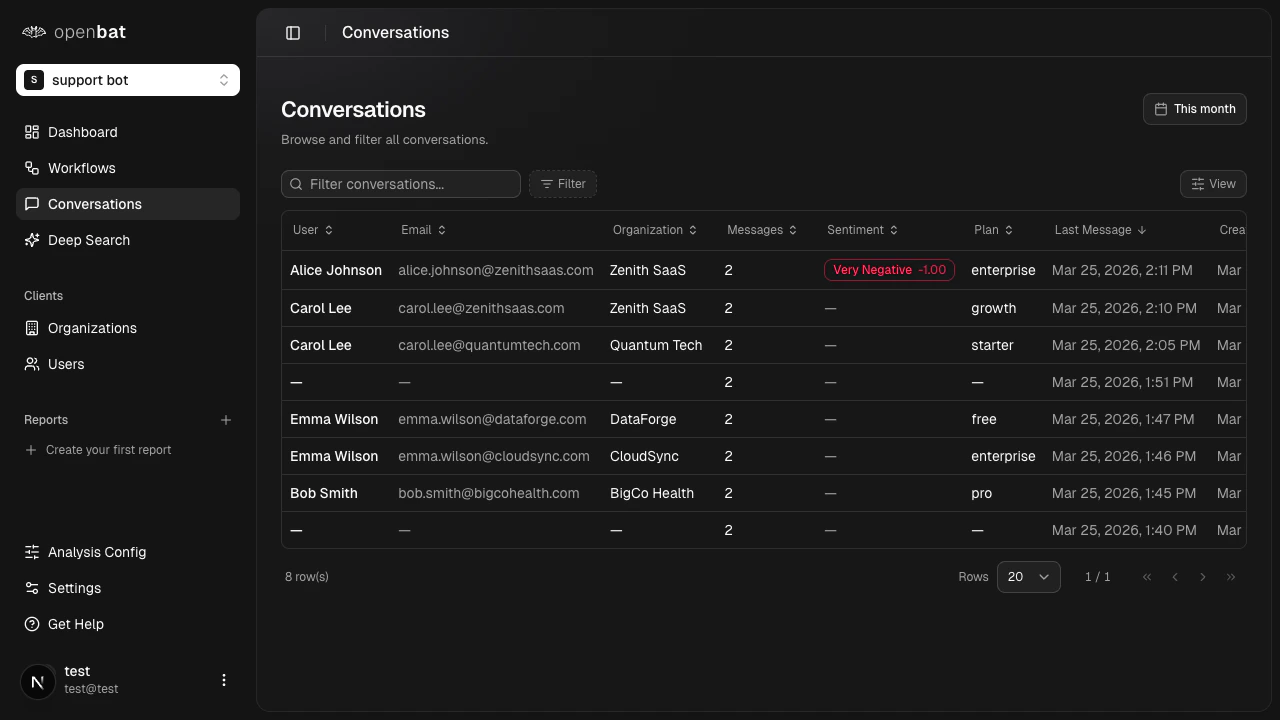
KPI cards
Four key metrics are displayed at the top of the dashboard:| Metric | Description |
|---|---|
| Conversations | Total conversation count for the selected period |
| Messages | Total message count across all conversations |
| Average sentiment | Mean sentiment score across analyzed messages |
| Analyzed today | Number of messages analyzed in the current day |
Filters
Date range
Click the date range button (defaults to This month) to select a different time period. Options include Today, Yesterday, This week, Last week, This month, Last month, This year, Last year, All time, and a custom date picker with dual calendar.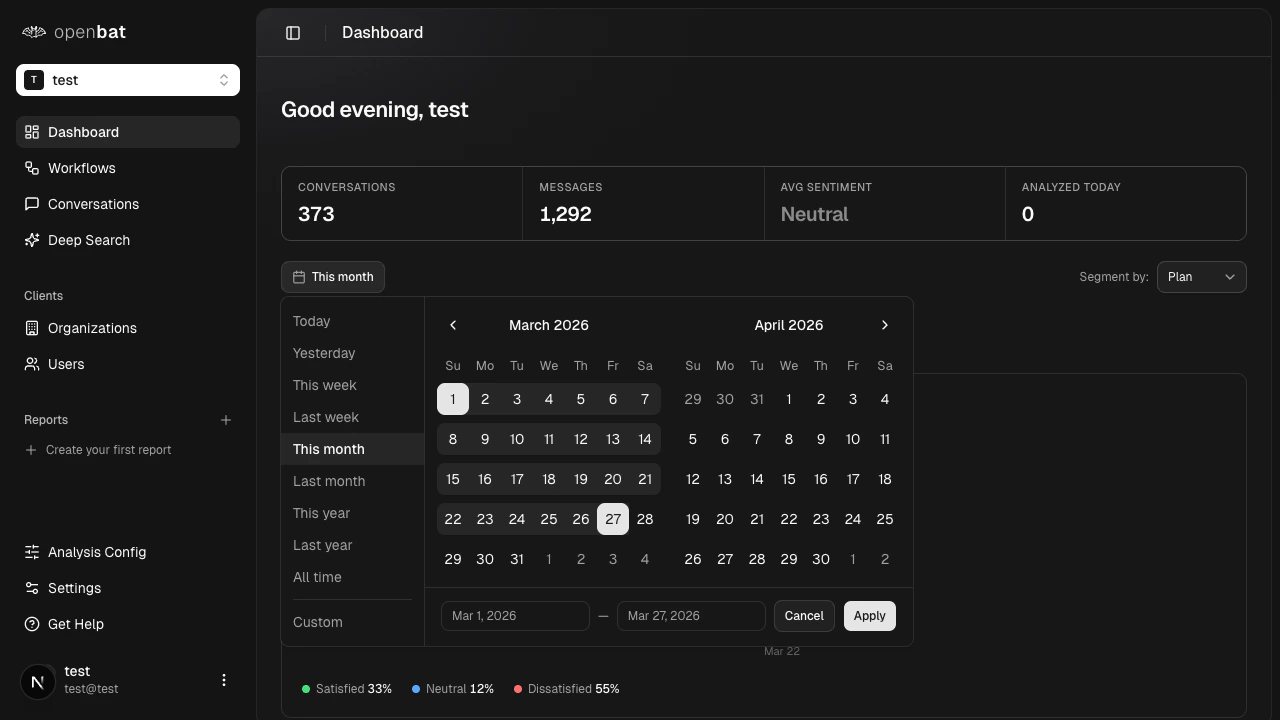
Segment by
Use the Segment by dropdown to break down metrics by Plan, Industry, Device, or Country.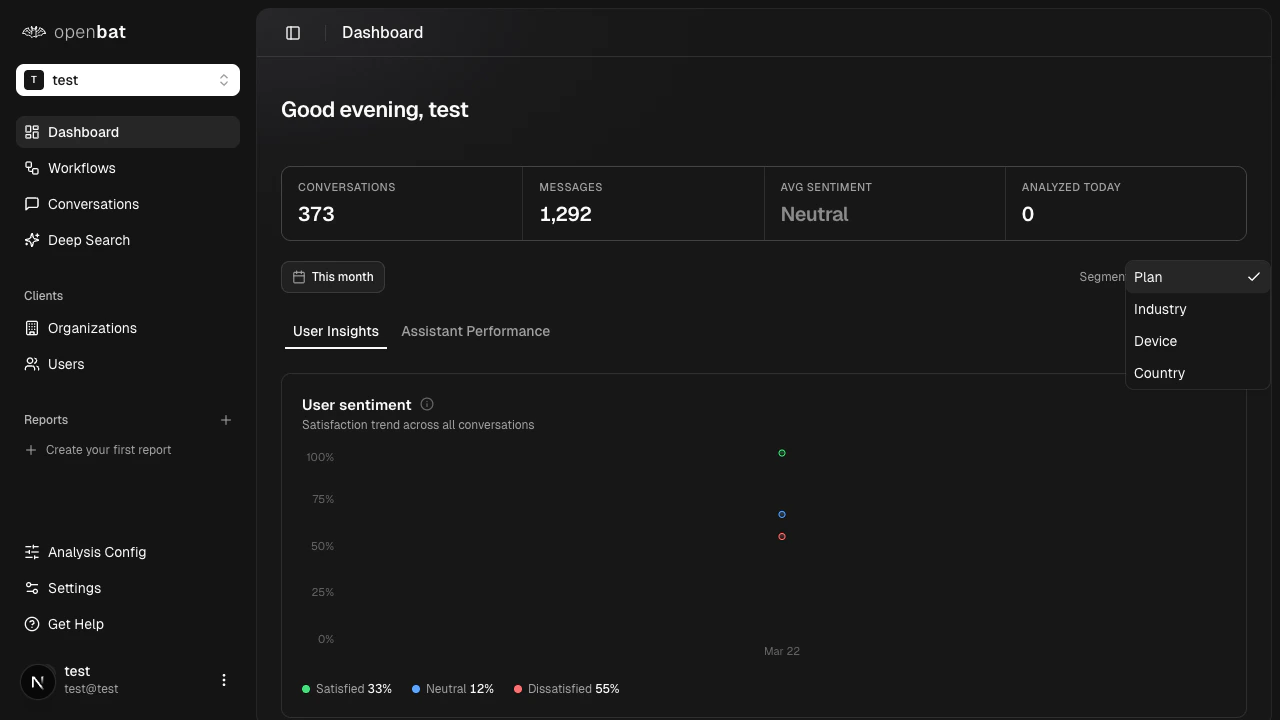
User insights
The User Insights tab gives you a comprehensive view of your users’ experience:- Sentiment trends — line chart showing sentiment over time
- Top frustrations — most common negative signals detected
- Most dissatisfied users — table of users with the lowest sentiment scores, each with an Investigate link that takes you to their conversation history
- Support topics — frequently discussed topics across conversations
- Revenue signals — grouped into churn risk, buying signals, and capability gaps
- Top intents — most common user intents detected
- Sentiment by segment — sentiment broken down by the selected segment
- Activity heatmap — visual representation of conversation activity patterns
- Languages — breakdown of languages detected in conversations
Assistant performance
Switch to the Assistant Performance tab to evaluate your chatbot’s response quality: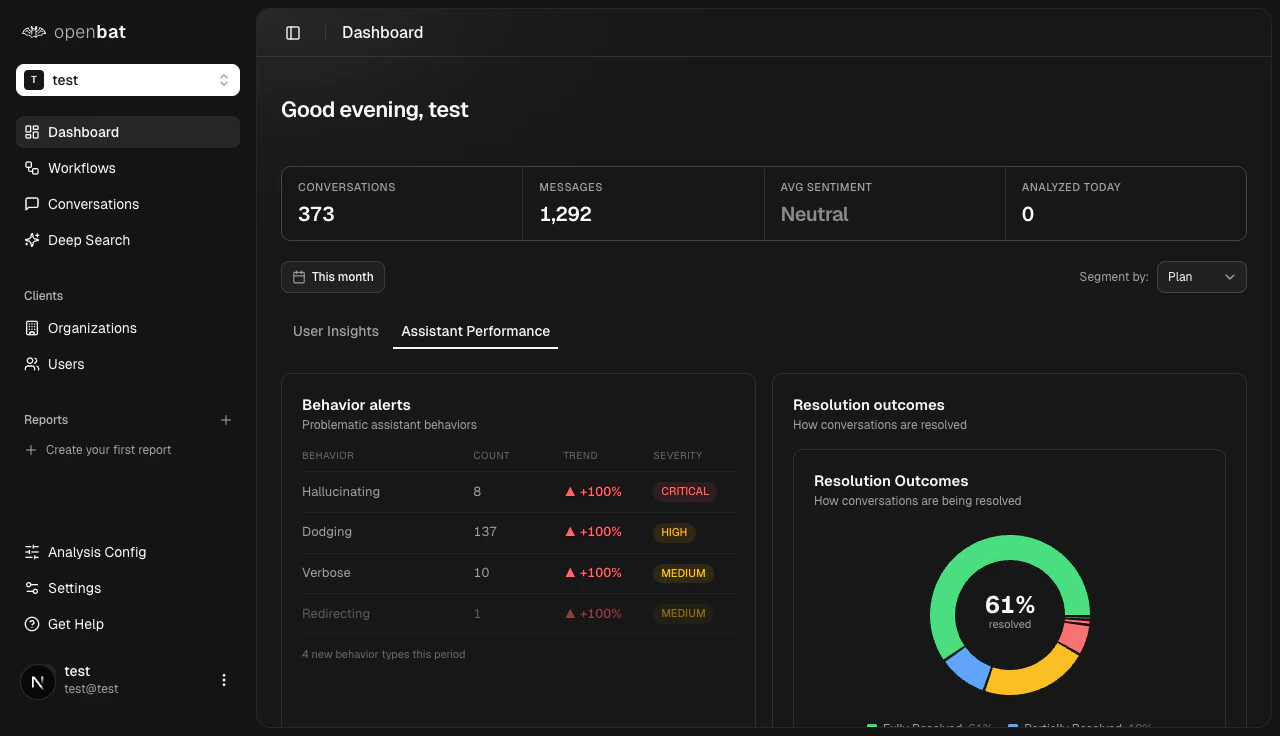
- Behavior alerts — flagged assistant behaviors (hallucinating, dodging, over-apologizing, etc.)
- Resolution outcomes — donut chart showing how conversations were resolved (fully resolved, partially resolved, unresolved)
- Quality flags — table of specific quality issues detected in assistant responses
- Capability gaps — areas where the assistant couldn’t adequately help users
Next steps
Investigate users
Drill into dissatisfied users’ conversations.
Conversations
Browse and filter individual conversations.
Analysis config
Customize which signals are detected.