

Find dissatisfied users
Open the chatbot dashboard
Navigate to
/platform/{chatbotId} and make sure you’re on the User Insights tab.Scroll to Most dissatisfied users
In the User Insights tab, find the Most dissatisfied users section. This table shows users with the lowest average sentiment scores, along with their email, organization, and conversation count.
Click Investigate
Click Investigate → next to the user you want to examine. This takes you to the conversations page filtered to show only that user’s conversations.
Open a conversation
Click on a conversation row to open the full message thread with AI analysis annotations.
Review analysis annotations
Look at the highlighted annotations on each message: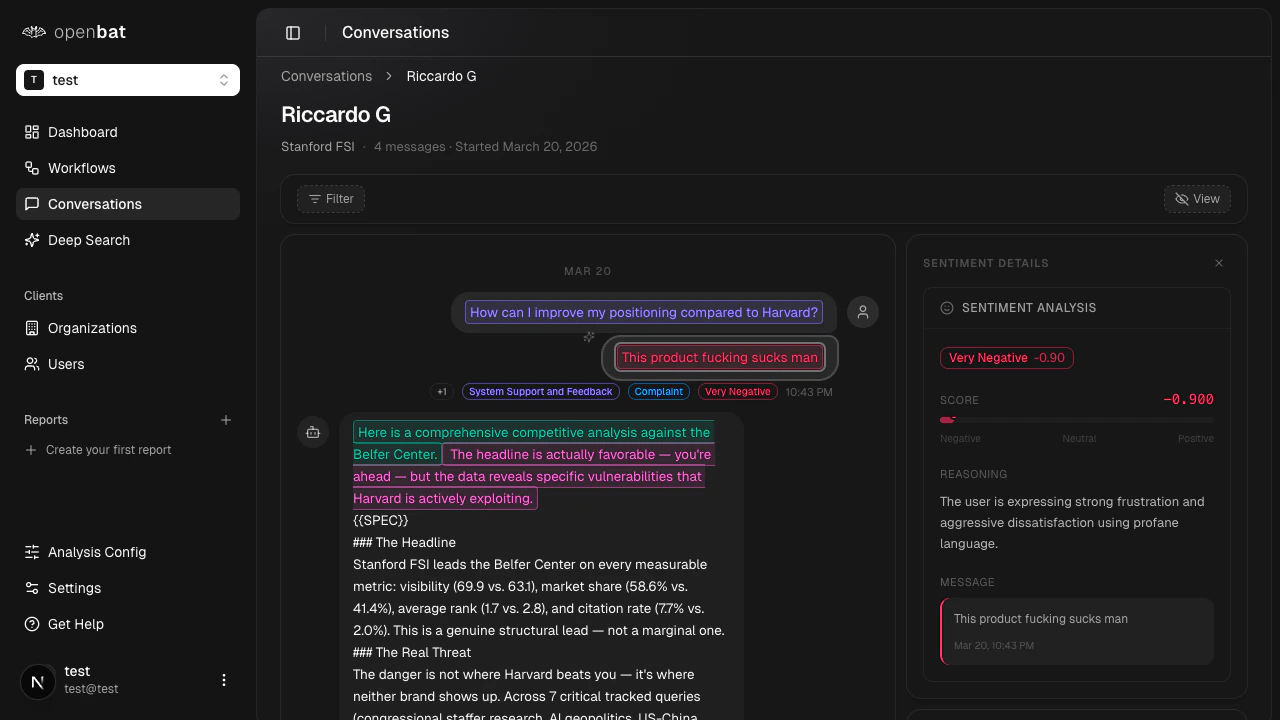
- Sentiment tags — shows how negative each message scored
- Behavior flags — indicates signals like “Frustrated User” or “Churn Risk”
- Quality flags — highlights assistant issues like “premature closure” or “hallucination”
- Resolution status — shows whether the conversation was resolved
What to look for
| Signal | What it means | Action |
|---|---|---|
| Multiple “Very Negative” tags | Sustained negative experience | Review assistant responses for quality issues |
| ”Frustrated User” flag | User expressed frustration explicitly | Check if the assistant addressed their concern |
| ”Hallucinating” quality flag | Assistant provided incorrect information | Update your knowledge base or analysis prompts |
| ”Premature closure” flag | Conversation ended without resolution | Review resolution workflow |
| High MRR + negative sentiment | High-value customer at risk | Prioritize personal outreach |
Next steps
Analytics dashboard
Monitor trends across all users.
Set up alerts
Get notified automatically about negative sentiment.
Customize analysis
Adjust which signals OpenBat detects.