

/platform/{chatbotId}/settings give you control over your chatbot’s configuration across six tabs.
General
The General tab displays:- Chatbot name — editable, click Save to update
- Chatbot ID — unique identifier with a copy button
- Created — when the chatbot was created
Company info
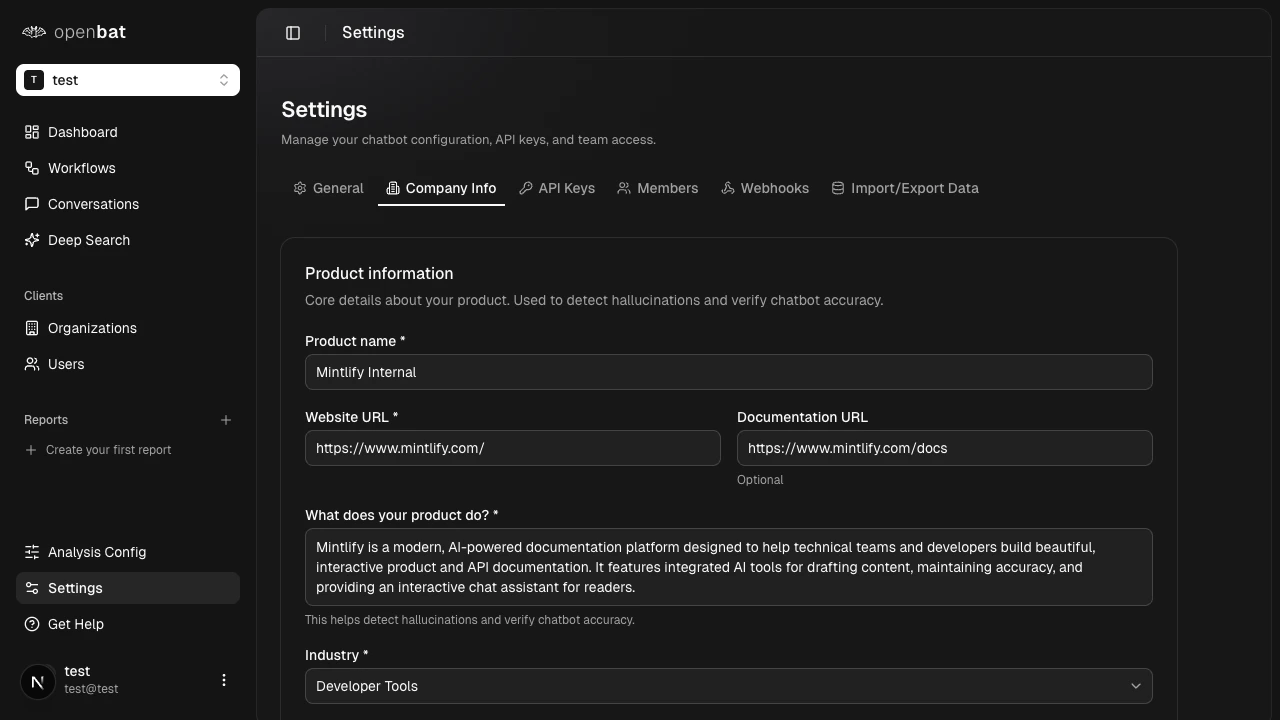
| Field | Required | Description |
|---|---|---|
| Product name | Yes | Your product’s name |
| Website URL | Yes | Your product’s website |
| Documentation URL | No | Link to your documentation |
| Industry | Yes | Select from dropdown (e.g., Developer Tools) |
| What does your product do? | Yes | Brief description of your product |
API keys
View, copy, and rotate your chatbot’s API key. See API keys for full documentation.Members
Manage chatbot-level member access. See Members and roles for details on organization and chatbot-level access.Webhooks
Configure webhook destinations for workflow alerts (Discord, Slack, custom). See Webhooks for setup instructions.Import/Export data
Export conversations as JSON or import historical data from JSON/CSV. See Data import and export for a full walkthrough.Chatbot lifecycle
From the main dashboard at/platform, right-click or click the … menu on any chatbot card to manage its lifecycle:
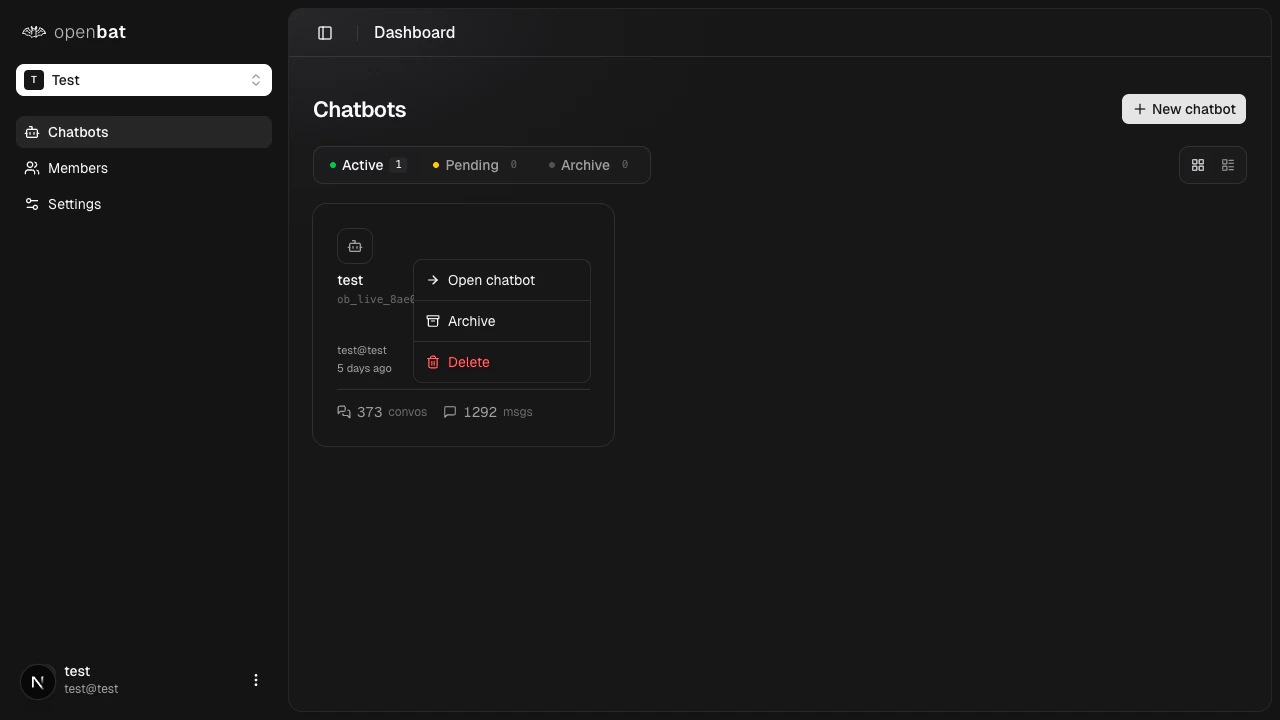
- Open chatbot — navigate to the chatbot’s analytics dashboard
- Archive — move the chatbot to the Archive tab. Archived chatbots stop receiving new conversations but retain all historical data. You can restore them later.
- Delete — permanently remove the chatbot and all associated data. This action cannot be undone.
| Status | Description |
|---|---|
| Active | Receiving and analyzing conversations |
| Pending | Created but awaiting SDK integration or first conversation |
| Archive | Paused and hidden from the main view |
Next steps
API keys
Manage your authentication keys.
Webhooks
Set up alert destinations.
Import/export
Move data in and out of OpenBat.