

Available prompts
| Prompt | What it controls |
|---|---|
| Sentiment | How sentiment scores are calculated from message text |
| Intent | How user intents are classified (e.g., “asking about pricing”, “requesting support”) |
| Topics | How topics are extracted from conversations |
| Flags | How user flags are detected (e.g., churn risk, buying signal) |
Edit a prompt
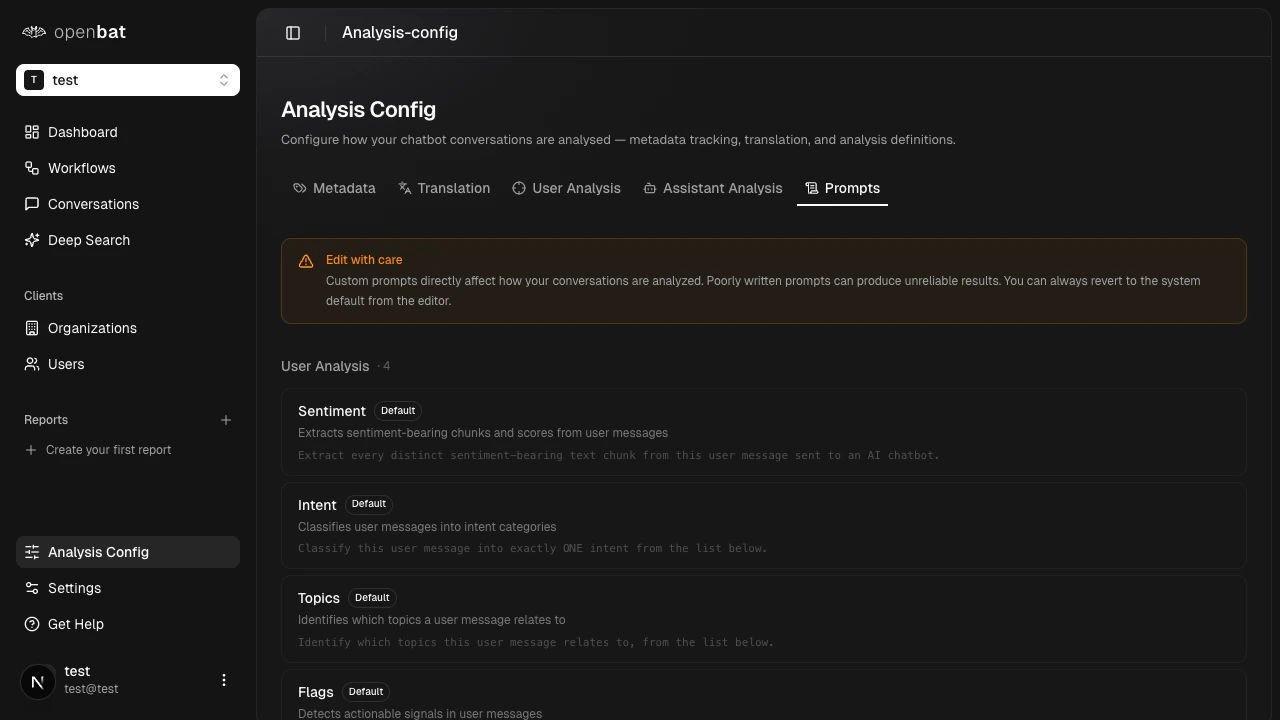
Select a prompt
Click on the prompt card you want to modify (Sentiment, Intent, Topics, or Flags). Unmodified prompts display a Default label.
Edit the prompt text
Modify the prompt to better fit your domain. For example, you might adjust the sentiment prompt to weight certain phrases differently for your industry.
You can revert to the system default prompt at any time from the editor.
Prompt writing tips
- Be specific about your domain — mention your product name, industry terminology, and common user scenarios
- Define what matters — if certain topics are more important for your business, call them out explicitly
- Include examples — provide sample messages and the expected classification to guide the AI
- Test incrementally — make small changes and review the results before making major rewrites
- Keep it concise — overly long prompts can confuse the model rather than helping it
Next steps
Analysis configuration
Explore all configuration options including flags and behaviors.
Analytics dashboard
See how your prompt changes affect analysis results.