

Chatbot statuses
| Status | Description |
|---|---|
| Active | Receiving and analyzing conversations via the SDK |
| Pending | Created but hasn’t received its first conversation yet |
| Archive | Paused — not receiving new conversations, but historical data is preserved |
/platform:
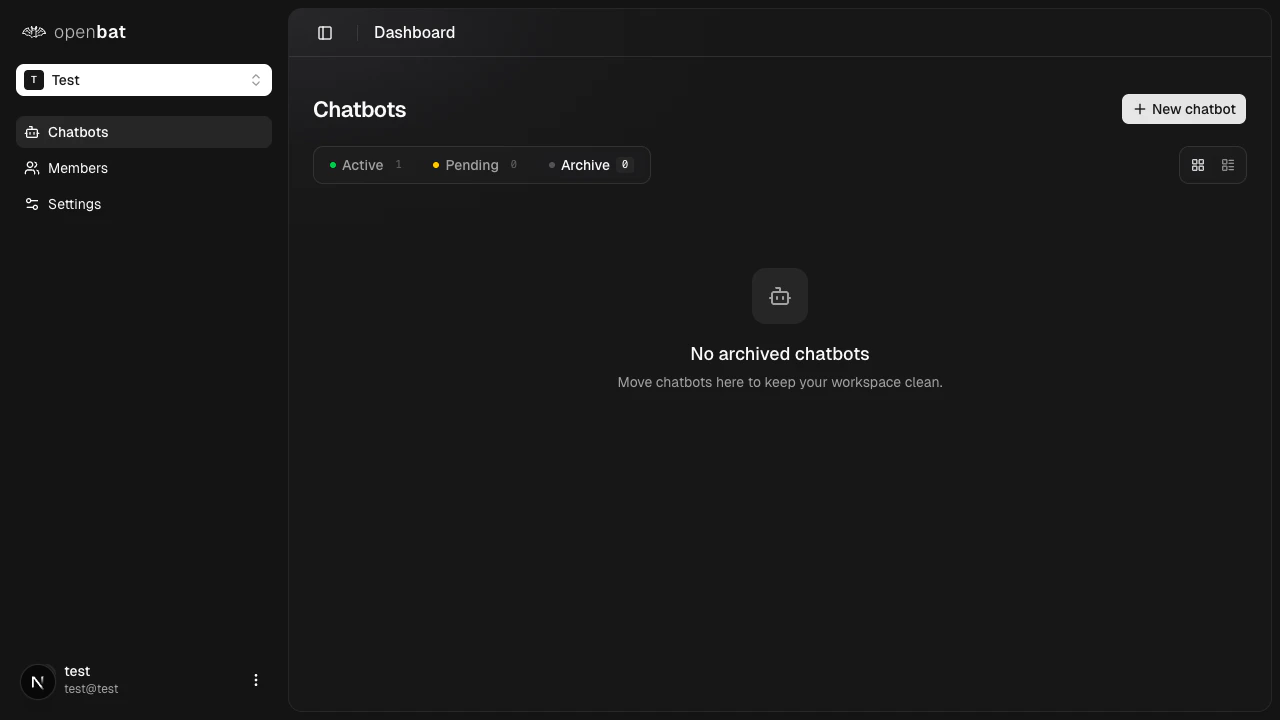
Archive a chatbot
Archiving pauses a chatbot without deleting any data. Archived chatbots stop receiving new conversations.Open the chatbot menu
On the main dashboard at 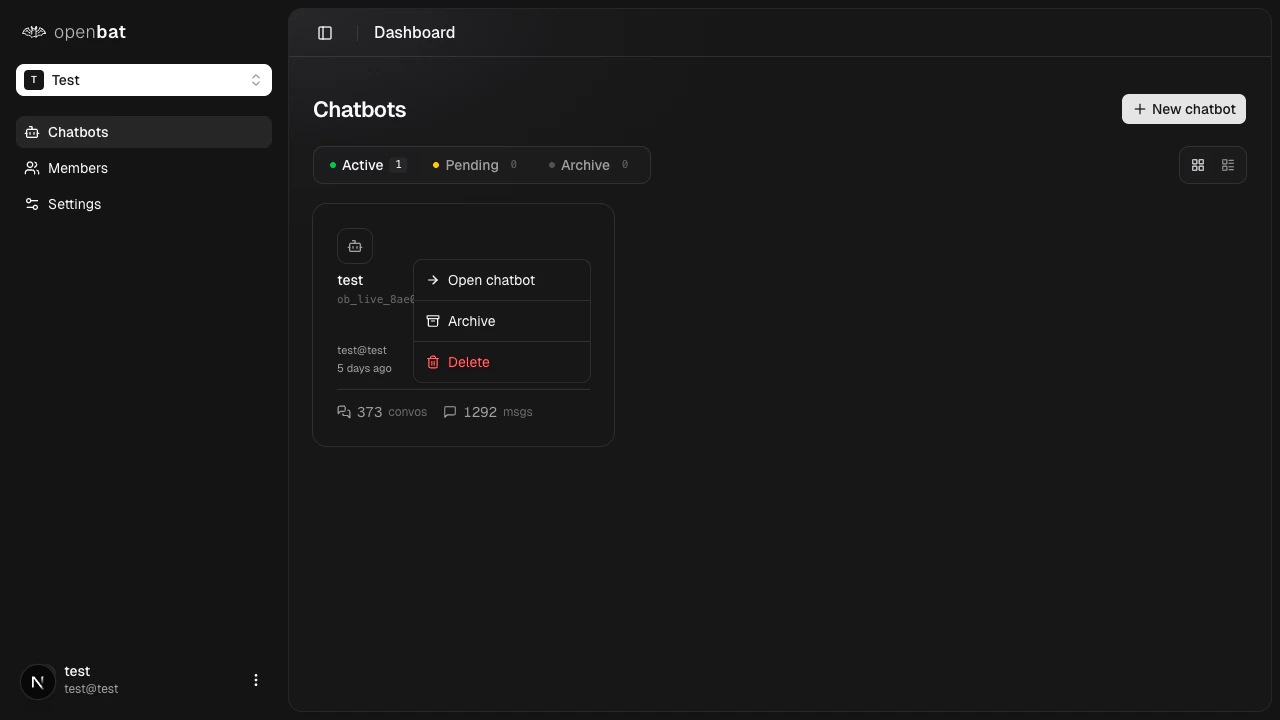
/platform, click the … button on the chatbot card you want to archive.Archived chatbots retain all conversation data, analysis results, and settings. You can restore them later by moving them back to Active status.
Delete a chatbot
Deleting a chatbot permanently removes it and all associated data.Pending chatbots
When you create a new chatbot, it starts in Pending status until it receives its first conversation via the SDK. Once the first conversation arrives, it automatically moves to Active.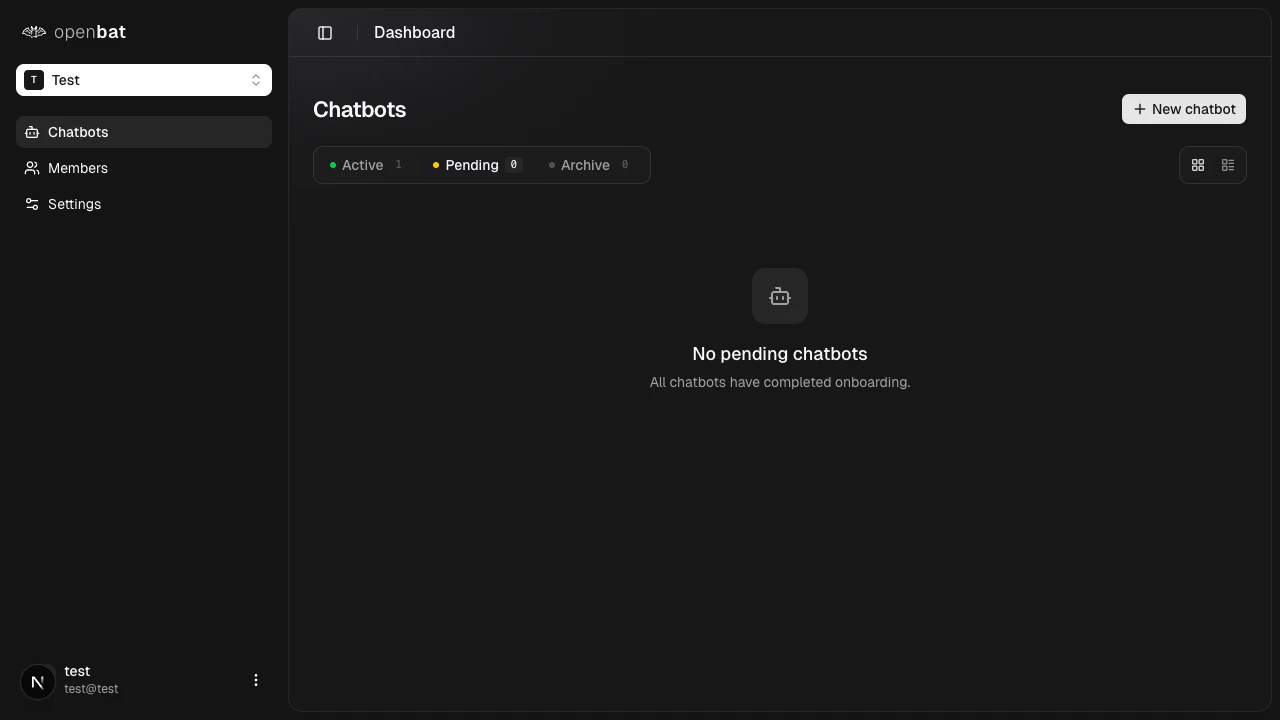
Next steps
Create your first chatbot
Add a new chatbot to your organization.
Chatbot settings
Configure an existing chatbot.