

Create an account
Go to openbat.dev and click Sign Up.
- Enter your email, create a password (min 8 characters), and confirm it
- You can also sign up with Apple, Google, or Meta
-
Your organization is created automatically (named after your email prefix)
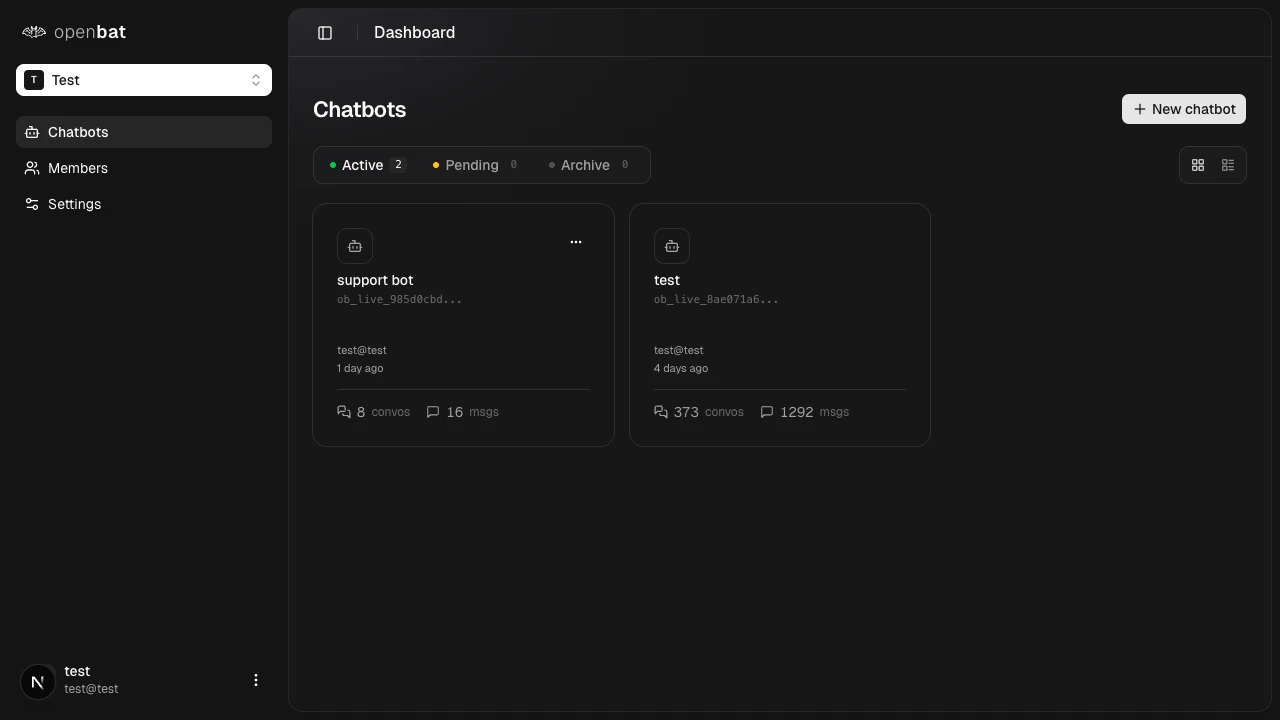
Create a chatbot
From the dashboard, click + New chatbot.
- Give your chatbot a name (e.g., “Customer Support Bot”)
-
Copy the API key — you’ll need it for the SDK
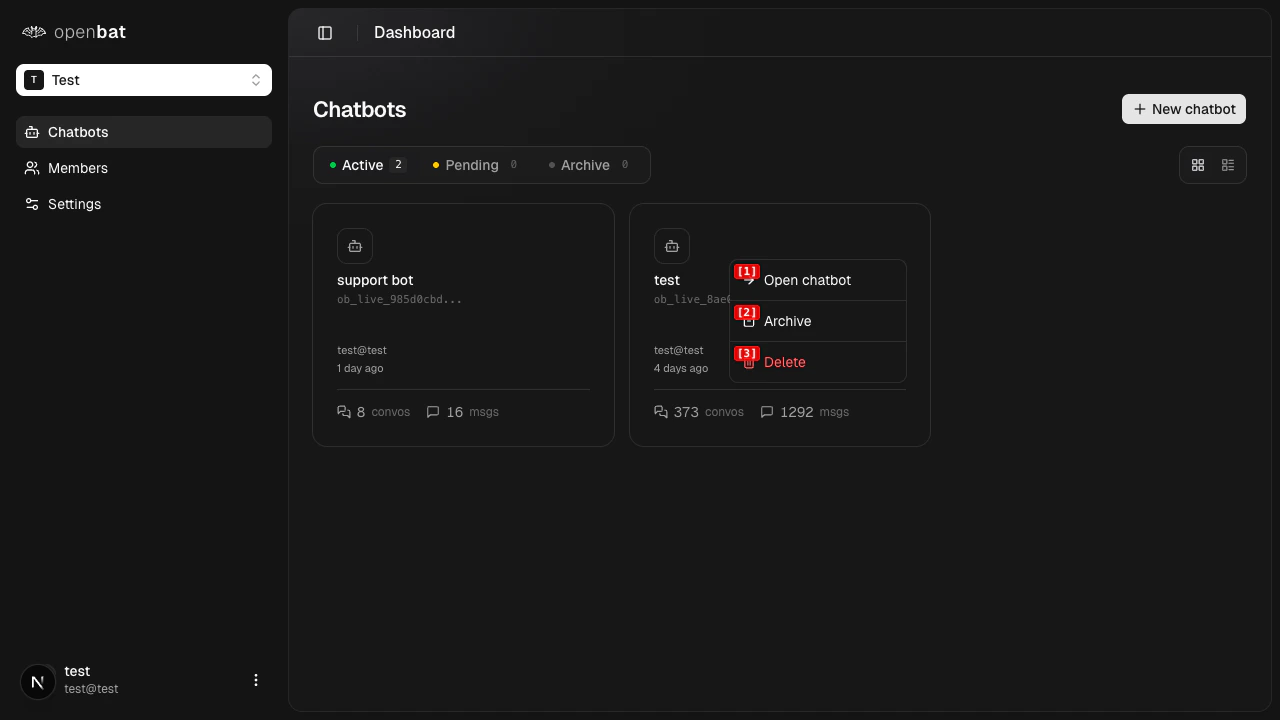
Send a test message
Run your chatbot with the SDK installed and have a short conversation to generate data.
View your dashboard
Go back to OpenBat and click on your chatbot. The dashboard shows: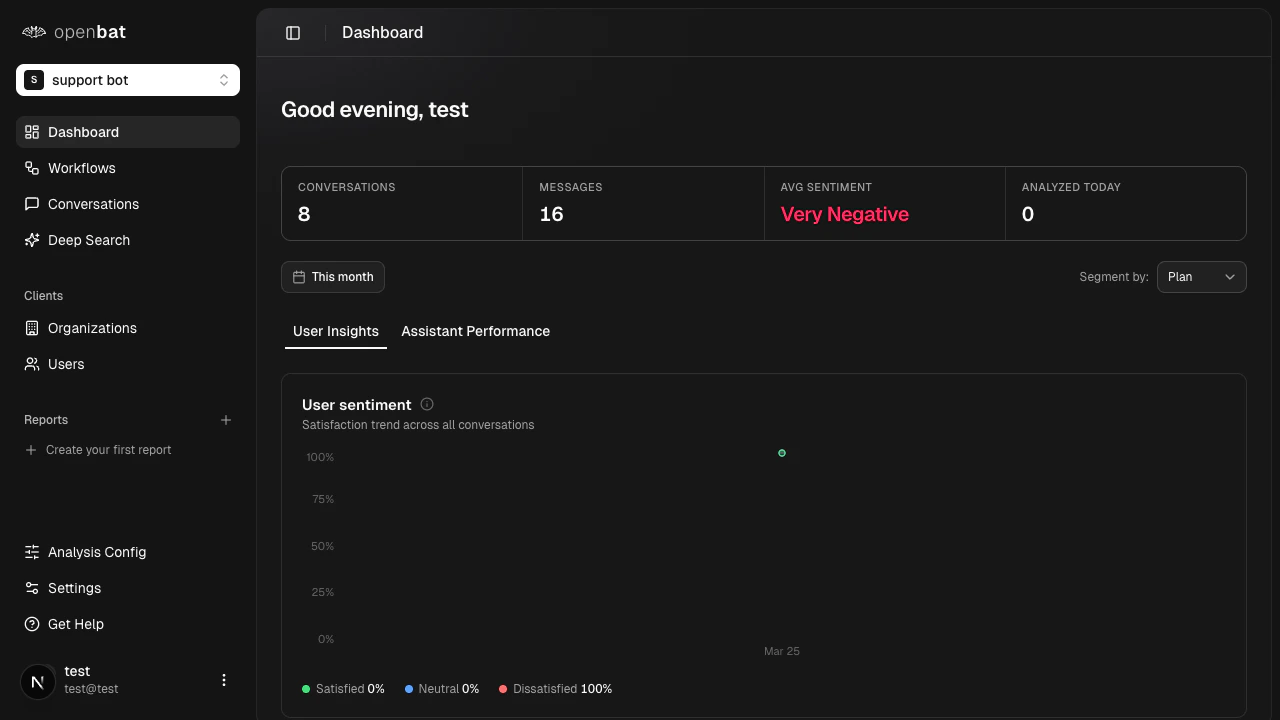
- Conversation count — total tracked conversations
- Message count — total messages across all conversations
- Average sentiment — how users feel overall
- Analyzed messages — messages processed with sentiment, intent, and flags
OpenBat automatically analyzes every message as conversations flow in. You’ll see sentiment scores, intent classifications, behavior flags, and more appear on your dashboard within seconds.
Next steps
Dashboard guide
Understand every metric and chart on your dashboard.
Conversations
Browse, filter, and search through tracked conversations.
Deep search
Query your conversation data with natural language.
Workflows
Set up automated actions based on conversation events.