Organizations
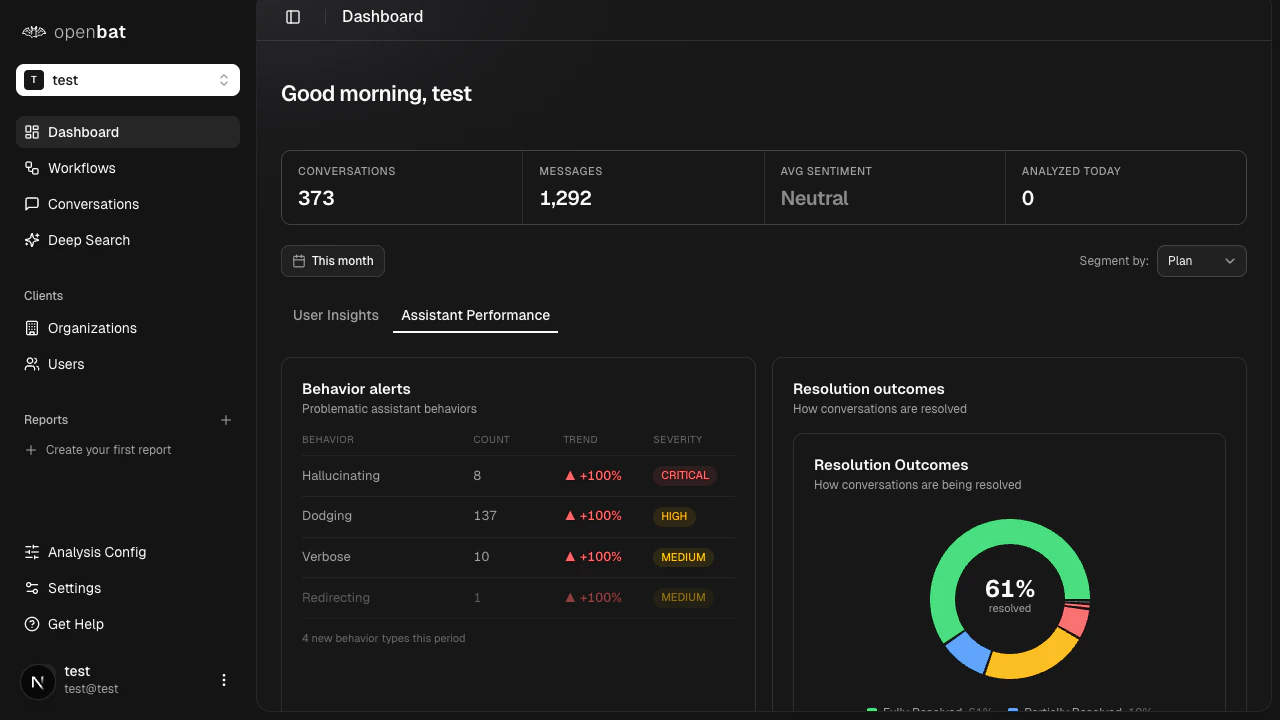
When you sign up for the first time, OpenBat automatically creates an organization named after your email prefix. There is no manual setup step. If you belong to multiple organizations, use the organization switcher in the sidebar to move between them. The switcher only appears when you have more than one organization.Roles
Each member of an organization has one of three roles:| Role | Capabilities |
|---|---|
| Owner | Full access. Rename and delete the organization. Manage all members and chatbots. Transfer ownership. |
| Admin | Invite and remove members. Create and manage chatbots. Cannot delete the organization or transfer ownership. |
| Member | Read-only access to assigned chatbots. Cannot invite members or create chatbots. |
Inviting members
Open the members page
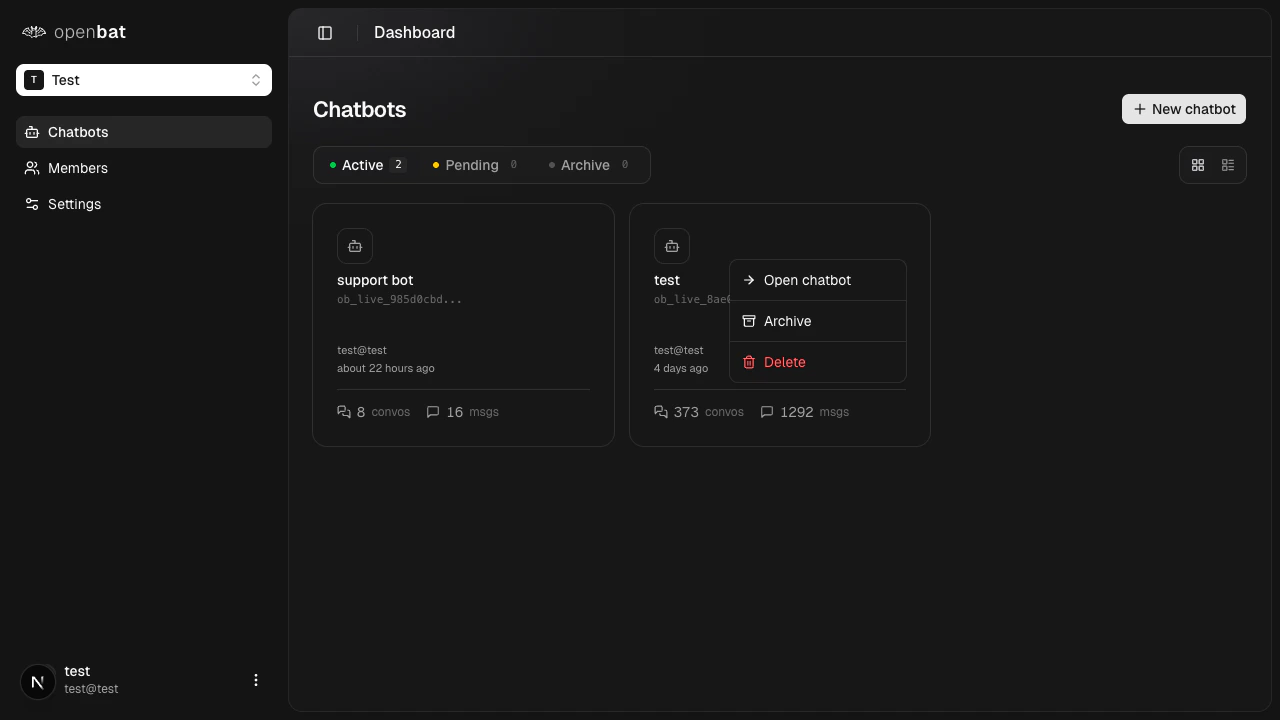
Navigate to Members in the sidebar, or go directly to app.openbat.dev/platform/members.
Enter details
Enter the email address of the person you want to invite and select their role (admin or member).
Removing members
Owners and admins can remove any member from the members page. Click the remove action next to the member you want to remove. Access is revoked immediately — the removed member can no longer see the organization or any of its chatbots.Organization settings
Owners can rename or delete the organization from the settings page.