

Modals
| Modal | Location | Fields |
|---|---|---|
| Create a chatbot | /platform > + New chatbot | Chatbot name (text, required, 0/100 character limit) |
| Invite member | /platform/members > + Invite member | Email (text, required), Role (dropdown: Admin or Member) |
Tabs
Tabs organize content across many pages:| Page | Tabs |
|---|---|
| Dashboard (chatbots) | Active, Pending, Archive |
| Analytics dashboard | User Insights, Assistant Performance |
| Workflows | Workflows, Runs, Templates |
| Analysis config | Metadata, Translation, User Analysis, Assistant Analysis, Prompts |
| Chatbot settings | General, Company Info, API Keys, Members, Webhooks, Import/Export Data |
Dropdowns
Date range picker
Available on the analytics dashboard, conversations, deep search, and organizations pages. Presets: Today, Yesterday, This week, Last week, This month, Last month, This year, Last year, All time, Custom (dual calendar picker).Segment by
Analytics dashboard dropdown to break down metrics by: Plan, Industry, Device, or Country.Filter popovers
Available on the conversations, organizations, and users pages. Filter fields include:| Field | Available on |
|---|---|
| User Industry | Conversations, Users |
| Org Plan | Conversations, Organizations |
| Device | Conversations |
| Language | Conversations |
| Template name | Conversations |
| Messages (count range) | Conversations |
| Sentiment average (score range) | Conversations |
| User MRR | Conversations, Users |
| Org MRR | Conversations, Organizations |
Column visibility toggle
Click the View button on table pages (conversations, organizations, users) to show or hide columns. The conversations table has 11 toggleable columns.Pagination
Table pages offer rows per page: 10, 20, 50, or 100.Other dropdowns
| Dropdown | Location | Options |
|---|---|---|
| Role | Invite member modal | Admin, Member |
| Export format | Settings > Import/Export Data | JSON |
| Industry | Settings > Company Info | Developer Tools, etc. |
| Primary language | Analysis Config > Translation | English, etc. |
Context menus
Chatbot card menu
Click the … button on a chatbot card on the main dashboard: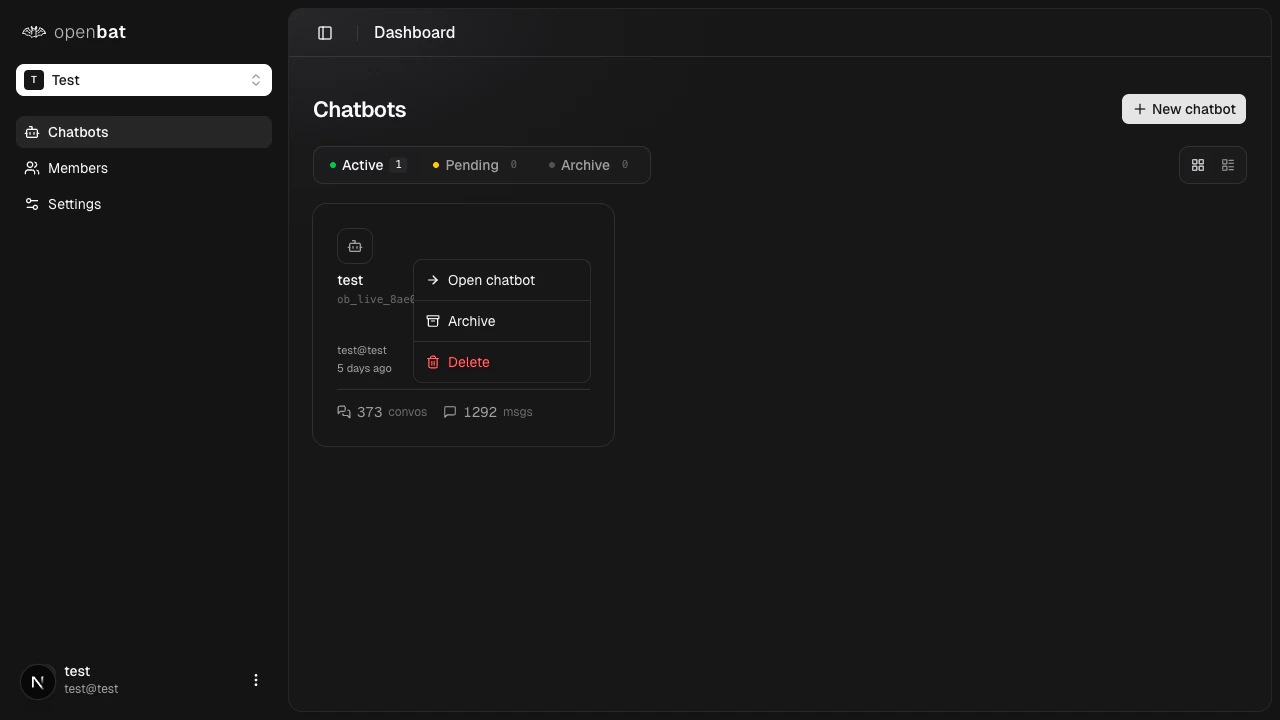
| Action | Description |
|---|---|
| Open chatbot | Navigate to the chatbot’s analytics dashboard |
| Archive | Move to the Archive tab (stops receiving conversations) |
| Delete | Permanently remove the chatbot and all data |
Forms
All form fields across the platform:Authentication forms
| Page | Field | Type | Required | Validation |
|---|---|---|---|---|
| Sign up | text | Yes | Valid email format | |
| Sign up | Password | text | Yes | At least 8 characters |
| Sign up | Confirm password | text | Yes | Must match password |
| Login | text | Yes | — | |
| Login | Password | text | Yes | — |
| Forgot password | text | Yes | — |
Platform forms
| Page | Field | Type | Required | Validation |
|---|---|---|---|---|
| Create chatbot modal | Chatbot name | text | Yes | Max 100 characters |
| Invite member modal | text | Yes | Valid email | |
| Invite member modal | Role | dropdown | Yes | Admin or Member |
| Organization settings | Organization name | text | Yes | — |
| Conversations | Filter conversations | text | No | Keyword search |
| Organizations | Filter organizations | text | No | Keyword search |
| Users | Filter users | text | No | Keyword search |
| Deep search | Search by meaning | text | No | Natural language query |
| Workflows | Workflow name | text | Yes | — |
Chatbot settings forms
| Tab | Field | Type | Required | Validation |
|---|---|---|---|---|
| General | Chatbot name | text | Yes | — |
| Company Info | Product name | text | Yes | — |
| Company Info | Website URL | text | Yes | Valid URL |
| Company Info | Documentation URL | text | No | Valid URL |
| Company Info | Industry | dropdown | Yes | — |
| Company Info | What does your product do? | textarea | Yes | — |
Accordions
The landing page has 5 FAQ accordions:- How long does setup take?
- Is my data secure?
- What gets analyzed?
- Which frameworks does it work with?
- What if I go over my message limit?